There are many ways to import data from external systems into Dynamics 365. One that I prefer is to import data using Recurring Integration. I won’t describe how to configure Recurring Integration in detail. You can find many articles on this – for example, this one from the atomicax.com blog. I will present how to create an Azure Logic app and configure the mechanism for importing data.
In my scenario, I will put data into an Azure SQL table – it could also be a local SQL Server or another source that the Logic App connector could read data from. I will read this data using the stored procedure and send it to Dynamics 365 using an HTTP request. Let’s look at this solution in detail.
In Azure SQL, I create a new table to store general journal data:

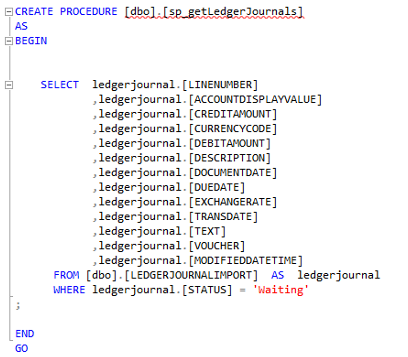
I also create a stored procedure to read data from this table:
In my scenario, I will use the default D365 entity – General Ledger Journal (LedgerJournalEntity). This entity creates a new ledger journal with rows.
In Dynamics 365 I need to create a new Recurring Integration data job:
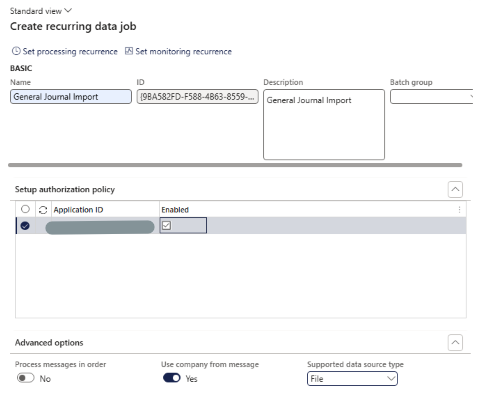
I selected File as the Supported data source type because I will send data in CSV format. I also checked Use company from message as I will send Dynamics 365 CompanyId in the request.
So now, I have configured the source – SQL table with the stored procedure, and the target – Recurring Integration data job. In the next step, I need to create a new Logic App and configure the workflow.
I use the HTTP trigger, so I can send requests from Dynamics 365 to run the Logic App. It’s very helpful because I can manage the Logic App launches from Dynamics 365 – for example, I can schedule a batch job to run the import. This solution has another advantage – I can send parameters from Dynamics 365. In my scenario, I send CompanyId, Journal Name and Account Type.
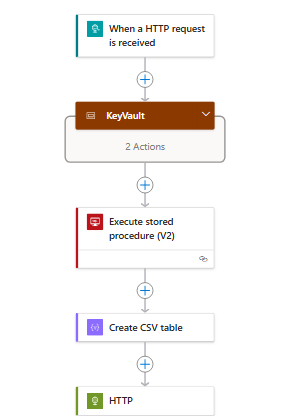
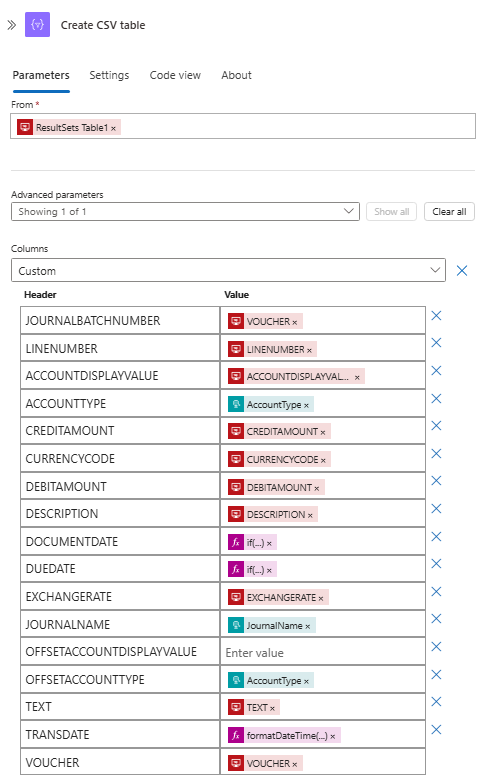
Logic App reads the data from Azure SQL using the stored procedure. In the next step, this data is converted to the CSV table format:
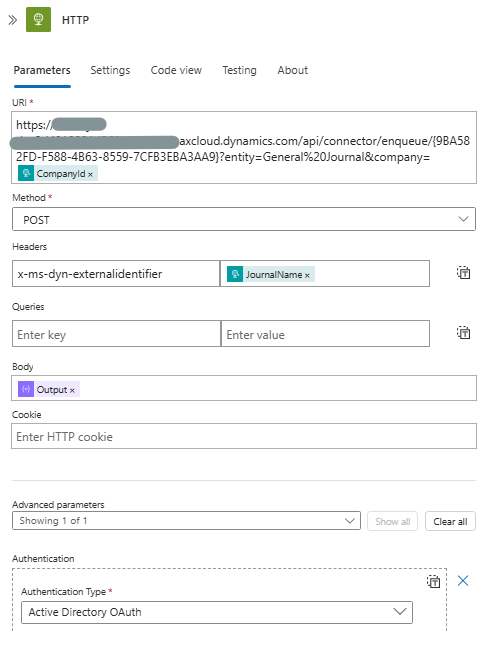
Finally, the data is sent to the Dynamics 365 Recurring Integration endpoint. In the body section, I insert the CSV table from the previous step.